
How to Read Real Measurements From a Building Plan?
A simple way to turn lines on a drawing into real-world dimensions.
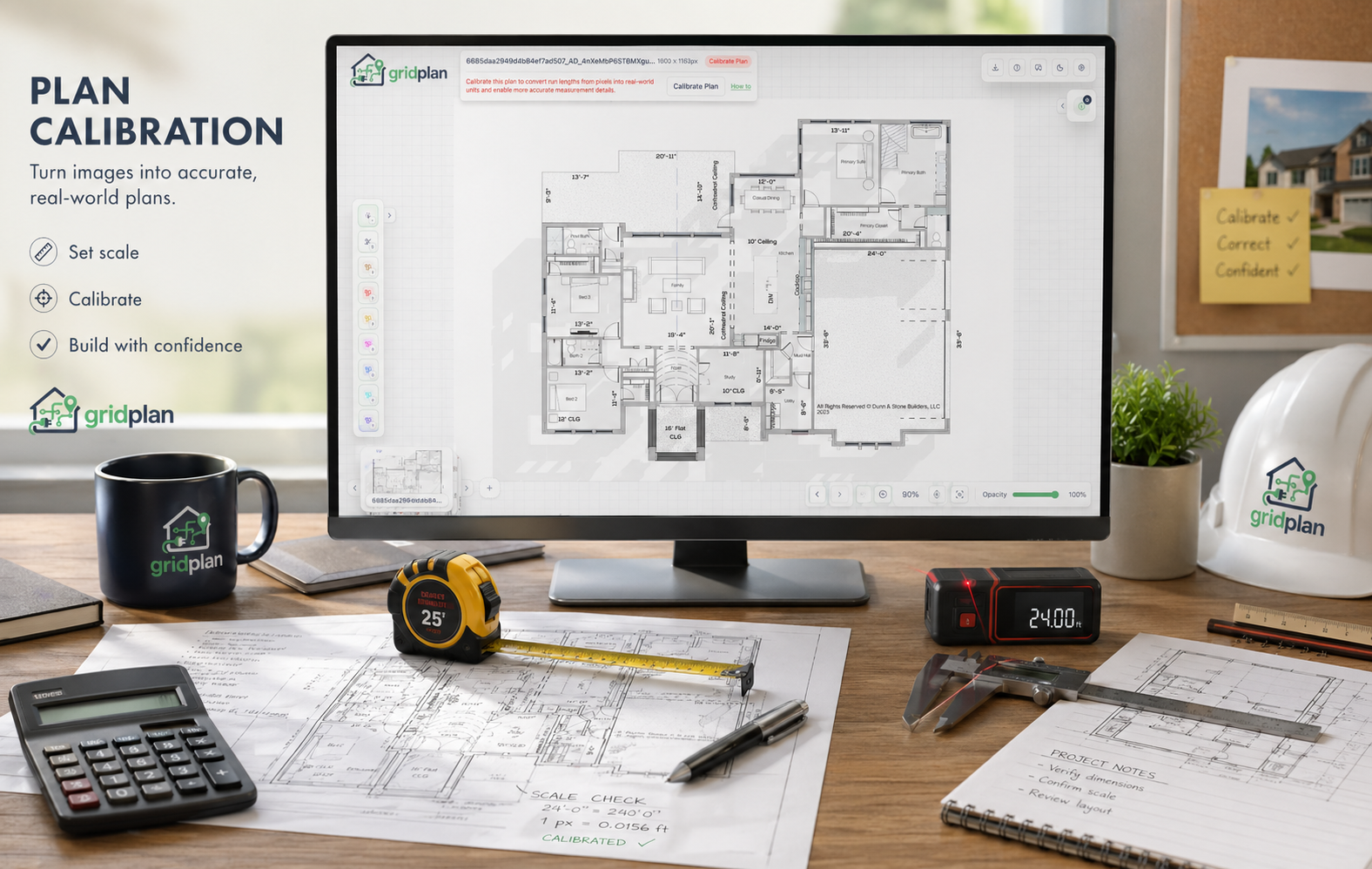
A building plan is, to the computer, mostly a grid of pixels. You can see walls and the room layout, but without scale a drawn line only says that it is, for example, 420 px long. Calibration turns that pixel length into a real-world measurement you can use for planning, estimates, and material orders.
That matters whenever you need to check a room width, wall length, distance between points, or cable route. Instead of printing a drawing and measuring by hand, you can define the relationship between pixels and real distance.
Find a reference dimension
The best starting point is a dimension printed directly on the plan. It may be a legend, drawing scale, labeled wall length, room width, or distance between structural grid lines. The important part is that the reference is reliable, not guessed from furniture, doors, or simplified symbols.
First, measure how many pixels that known line has in the image. If a labeled wall is 5 m in real life and 250 px in the file, the ratio is:
5 m / 250 px = 0.02 m per 1 px
From that point on, every other line can be measured in pixels and multiplied by that ratio. A 600 px line would be 12 m in this example. The math is simple, but it is easy to make mistakes when you repeat it across many routes.
Make it easier in GridPlan
GridPlan does the same calculation, then saves the ratio for you:
- Add a plan to the project.
- Find a reliable reference dimension, such as a labeled wall or a segment from the legend.
- Click Calibrate Plan.
- Mark the two ends of the known distance on the plan.
- Enter its real-world length.
- Save the calibration.
After that, GridPlan knows the relationship between pixels and the real-world unit for the selected plan. Cable runs and lines drawn with the Measurement tool can display values in real-world units, without having to convert them manually.
Draw measurements after calibration
Once the plan is calibrated, you can measure specific distances step by step:
- Choose the Measurement tool.
- For a single straight line, drag from the start point to the end point.
- For a route made of several segments, add each next point.
- Finish the measurement when you reach the final point.
- Read the length shown next to the measurement line.
GridPlan sums the segments and shows the result in real-world units. This makes it easier to check distances, compare route options, or prepare an estimate.